Installing the App
Last Update: 20/08/2026
ARShades VTO is a Shopify App Store app. You install it yourself, from your Shopify admin, using the link below — no code, no file to upload, and nothing to request from us in advance.
ARShades VTO is published with limited visibility: it will not appear if you search the Shopify App Store. This is intentional. Use the direct link below — it works for any Shopify store.
Before You Start
| You need | Notes |
|---|---|
| A Shopify store | Any plan. An Online Store 2.0 theme (e.g. Dawn) is recommended, so the try-on buttons can be added from the theme editor without code. |
| Permission to install apps | The store owner, or a staff account with permission to manage and install apps. Without it, Shopify will not show the install confirmation. |
| An ARShades Licence Token | Requested during setup, not during installation. See Requirements. |
| SKU, UPC or EAN on your products | Used to match your catalogue with the 3D models in the ARShades Library. |
You do not need to install anything before this: the app carries its own storefront components.
Step 1 — Open the App Store Page
Open https://apps.shopify.com/arshades-vto in your browser.
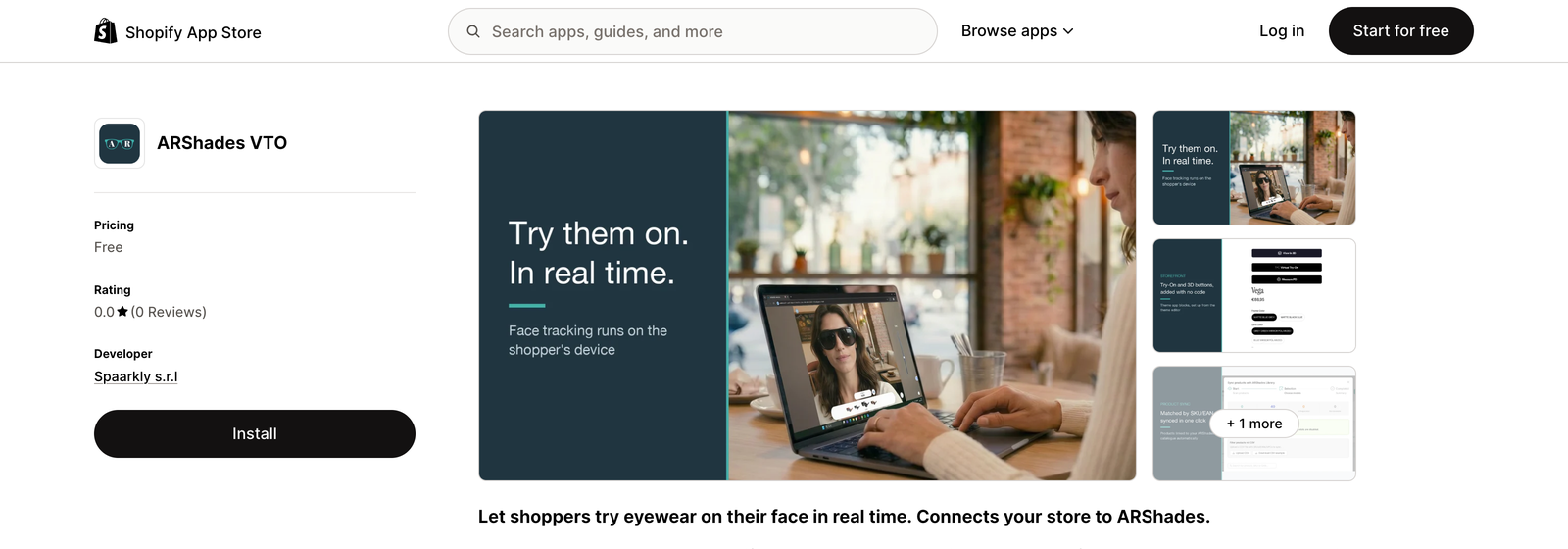
The page shows the app details and, in the left column, the Install button. The app is free to install on Shopify; the try-on and 3D services themselves run on your ARShades licence.
Step 2 — Choose Your Store
Click Install. Shopify asks which store you are installing on:
- if you are already signed in to your Shopify admin, pick the store from the list;
- otherwise, enter your store address (for example
your-store.myshopify.com) and sign in.
If you manage several stores, check the store name in the top-right corner of the admin before confirming. Installing on the wrong store is not harmful, but you will have to uninstall and start again.
Step 3 — Review the Permissions
Shopify shows exactly what the app will be allowed to access, and asks you to confirm:
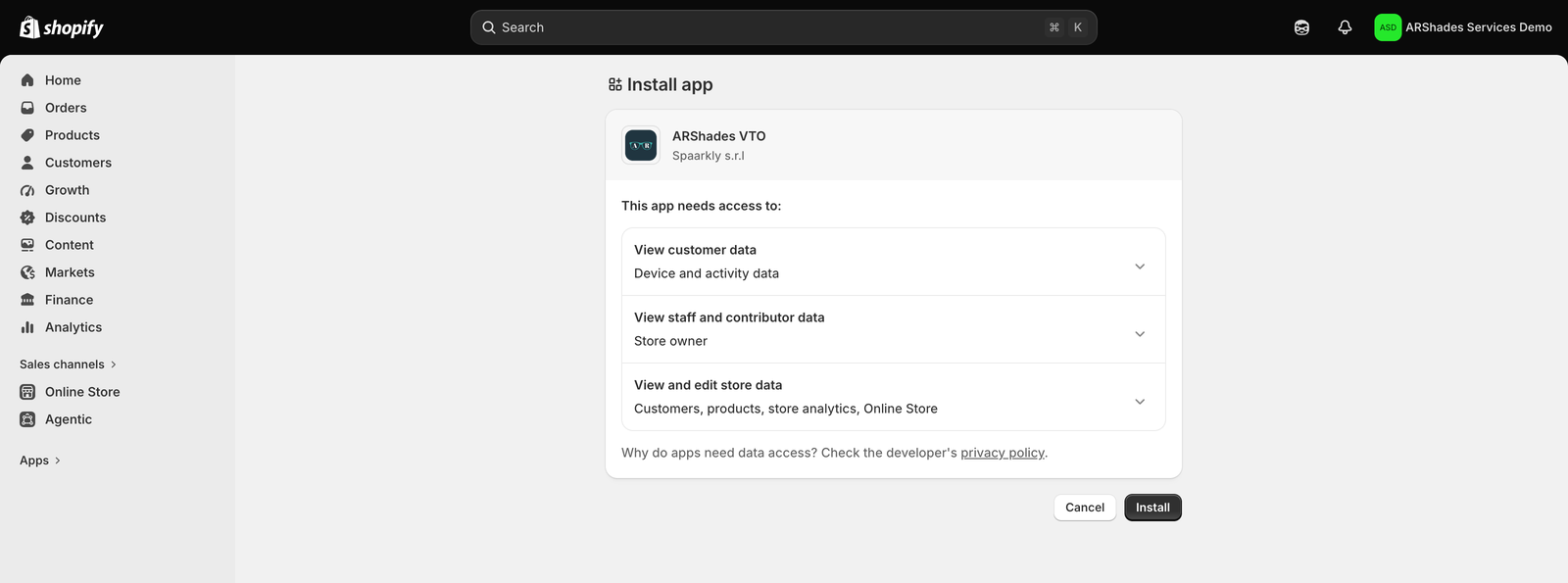
Click Install to confirm. See What the App Can Access below for what each line covers and why it is needed.
Step 4 — The App Opens in Your Admin
After confirming, the app opens directly inside your Shopify admin, under Apps → ARShades VTO, and the guided setup starts.
From here, follow the Quick Start guide: licence activation, catalogue creation, product synchronisation, design, then adding the blocks to your theme.
The ARShades storefront components are loaded by the ARShades VTO Embed app embed. It must be switched on in your theme, even if you only use the PD Meter. See Embeds.
What the App Can Access
Shopify groups permissions into three lines. Here is what each one covers, and why the app needs it:
| On the permission screen | What it covers | Why ARShades needs it |
|---|---|---|
| View customer data — Device and activity data | Storefront interaction events | The ARShades Analytics Pixel records try-on and 3D usage events, so you can see how the features are used. No personal shopper data is collected. |
| View staff and contributor data — Store owner | The store owner account | Identifies the store the licence is connected to. |
| View and edit store data — Customers, products, store analytics, Online Store | Products and variants, theme, analytics events | Writing the arshades.* metafields that link each variant to its 3D model; reading your theme to detect which ARShades blocks and embeds are active; publishing the analytics pixel. |
What the app does not request:
- no access to orders, or to customer names, emails or addresses — these permissions are not part of the app;
- no access to your payment or billing data;
- camera frames never leave the shopper's device — face tracking runs locally in the browser, and no image is uploaded.
Full detail: plugin privacy policy.
Uninstalling
From your Shopify admin, go to Settings → Apps and sales channels, find ARShades VTO and remove it.
What happens then:
- the try-on, 3D and PD Meter buttons stop appearing on your storefront immediately — theme blocks belonging to an uninstalled app are no longer rendered;
- your app session is deleted straight away;
- about 48 hours later Shopify sends the data-deletion request and the app deletes its store-side records: synchronised variants, store settings and sessions;
- your ARShades catalogue and 3D models are not affected — they belong to your ARShades licence and stay available in ARShades Studio.
To come back, install from the same link and re-enter your Licence Token. The blocks already placed in your theme start working again once the licence is connected.
If Something Goes Wrong
I searched the Shopify App Store and the app is not there.
Expected: the app is published with limited visibility, so it is not returned by App Store search. Open the direct link instead: https://apps.shopify.com/arshades-vto
The link opened, but on the wrong store.
Use the account menu in the top-right corner of the Shopify admin to switch store, then open the link again. Nothing is installed until you confirm on the permission screen.
I never get the install confirmation, or the button does nothing.
Your staff account probably lacks permission to install apps. Ask the store owner to either run the installation or grant you app-management permission, then try again.
The app installed, but it reports a licence or domain error.
Installation and licence are two different things. The plugin only works on domains authorised in your ARShades licence: check that your store domain (both .myshopify.com and your custom domain) is in the authorised list. See VTO & 3D Viewer License.
Can I install it on a development store first?
Yes, and it is a good way to test. The development store domain must also be among the authorised domains of your licence.
Next Steps
Continue with the Quick Start guide to connect your licence and go live.